
Blocking
How to lock SafeSearch so it stays on
Google doesn’t let you lock SafeSearch on your own account: if you manage your own Google account, you can always switch it back. To make it stay on, lock it below the account, on the phone or on the network, with a family DNS filter on Android or your router, or Screen Time on iPhone.
Here is each way to do it, starting with the plain setting, and what each one misses. A SafeSearch lock is worth having, but it only cleans up search results. It doesn’t stop a site from loading.
Quick answer: Set SafeSearch to Filter at google.com/safesearch. Then lock it: on Android, set Private DNS to family.adguard-dns.com; on iPhone, turn on Limit Adult Websites and let someone else hold the Screen Time passcode; at home, set your router’s DNS to a family filter.
1. Set SafeSearch to Filter
Start here, whatever else you do. Google has three settings: Filter hides all explicit results; Blur, the default for adults, only blurs explicit images, so explicit text and links can still show; Off shows everything.
- In the Google app (iPhone or Android), tap your profile picture, then Settings → SafeSearch.
- Choose Filter.
- In each browser you use, also go to google.com/safesearch and choose Filter. If you’re signed in, your choice follows your Google account.
What it catches: explicit results on Google Search, Images and Videos.
What it misses: Google says SafeSearch only works on Google Search. Other search engines, sites you type in, and links in apps aren’t covered.
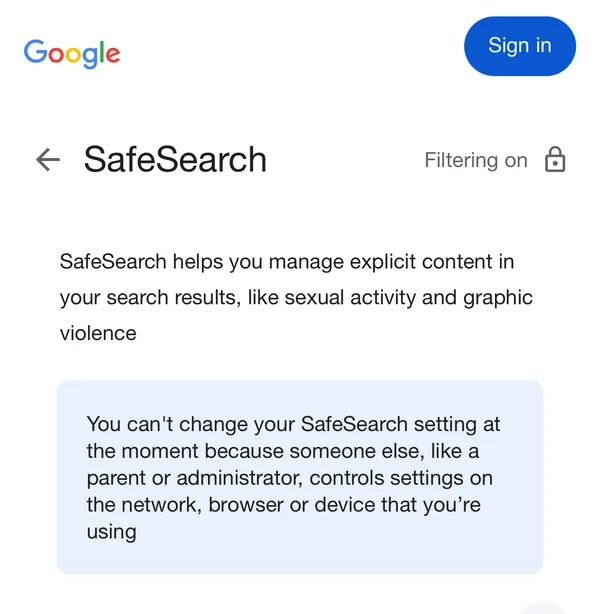
How easy to undo: one switch. You’ll only see a lock icon if a parent, a school or a network admin manages it.
2. Lock it on Android with a family DNS
Some family DNS filters send search engines to their safe versions for every app on the phone, so the setting can’t be changed from the search page. Android lets you use one through Private DNS. AdGuard says its family server blocks adult content and turns on “Safe Search and Safe Mode, where possible”.
- Open Settings and type Private DNS in the search bar.
- Choose Private DNS provider hostname.
- Enter family.adguard-dns.com exactly, and tap Save.
- In Chrome, open Settings → Privacy and security → Use secure DNS and choose your current service provider, so Chrome follows the phone’s setting.
What it catches: search engines it can switch to safe mode, plus known adult sites, on Wi-Fi and mobile data.
What it misses: explicit content inside apps and on sites the filter allows.
How easy to undo: three taps in Settings, and nobody is told. For other free filters and what each one forces, see Private DNS porn blocker.
3. Lock it on iPhone with Screen Time
iPhone has no SafeSearch lock as such. The closest thing is Apple’s adult-website filter, held in place by a passcode someone else knows.
- Open Settings → Screen Time → Content & Privacy Restrictions and turn it on.
- Tap App Store, Media, Web, & Games → Web Content and choose Limit Adult Websites.
- Let someone you trust set your Screen Time passcode, so these settings can’t change without them.
- Still set SafeSearch to Filter in the Google app and in Safari (step 1).
Apple doesn’t document a SafeSearch lock. People in Apple’s own forums report that with Limit Adult Websites on, Safari opens search engines in their safe mode, but the browsers built into other apps don’t. That’s why step 4 matters.
What it catches: adult websites in Safari and the other browsers, and, by those reports, explicit search results in Safari.
What it misses: search inside other apps, and content inside apps.
How easy to undo: only with the person who holds the passcode. Full steps in how to block porn on iPhone.
4. Lock it for your home Wi-Fi
Google, Bing and YouTube each publish a way to force their safe mode for a whole network. It’s meant for schools and offices, but it works at home if your router lets you change its DNS.
- Open your router’s admin page. The address and password are usually on a sticker on the router.
- Find the DNS settings and enter a family filter that forces safe search, for example AdGuard Family: 94.140.14.15 and 94.140.15.16.
- If your router can create its own DNS entries, you can use the search engines’ own methods instead: point www.google.com to forcesafesearch.google.com, www.bing.com to strict.bing.com, and YouTube’s main addresses to restrict.youtube.com.
- Change the router’s admin password and give it to someone else to keep.
What it catches: every device on that Wi-Fi, in every browser and tab. Google says a network lock can’t be undone in the browser.
What it misses: a phone on mobile data or on any other Wi-Fi.
How easy to undo: it needs the router’s admin password, which makes it the hardest of these to undo, if someone else holds that password.
5. Turn on YouTube Restricted Mode
YouTube has its own filter, separate from SafeSearch.
- In the YouTube app, tap your profile photo, then Settings → General.
- Turn on Restricted Mode.
- On the mobile site, it’s profile photo → Settings → Account.
What it catches: videos YouTube marks as potentially mature, based on signals like titles, descriptions and age restrictions.
What it misses: YouTube says Restricted Mode works per browser or device, so it has to be turned on in each one, and the quality varies by language.
How easy to undo: one switch. To lock it, use a family DNS that forces it, or the network method in step 4.
Bing and Chrome
- Bing: on the Settings page, choose Strict under SafeSearch and tap Save. Microsoft says Strict filters explicit text, images and videos; Moderate, the default, still shows explicit text. To lock it for a network, Microsoft’s method is the strict.bing.com mapping in step 4.
- Chrome: Chrome has no SafeSearch switch of its own; it uses your Google setting. Chrome does have settings that force SafeSearch and YouTube Restricted Mode, but only on browsers managed by a school or company. On your own phone, lock it with Private DNS or Screen Time instead.
Which lock covers what
| Method | Covers | Gaps | How easy to undo |
|---|---|---|---|
| Google setting: Filter | Google Search where you’re signed in | Other browsers, devices, search engines | One switch |
| Android: family Private DNS | Every app on the phone, Wi-Fi and mobile data | Content inside apps | Three taps |
| iPhone: Screen Time + passcode | Adult sites in browsers; safe search in Safari, by user reports | Search inside other apps | Needs the passcode holder |
| Home router DNS | Every device on that Wi-Fi | Mobile data, other Wi-Fi | Needs the router password |
| YouTube Restricted Mode | YouTube in that app or browser | Each browser and device separately | One switch |
What a SafeSearch lock can’t do
- Block websites. It cleans up search results. A site typed straight into the address bar still opens unless something else filters it.
- Reach inside apps. Social feeds and messages aren’t search results.
- Catch everything. Google says SafeSearch “attempts” to filter explicit content. Some gets through, and Google asks people to report it.
Where QUIT helps
We make QUIT, so keep that in mind. On Android, QUIT’s shield forces SafeSearch on Google, Bing and YouTube and blocks adult sites in every browser and app, all on the phone. Strict Mode makes switching it off a request that unlocks after 24 hours, or sooner if a partner you trust approves. On iPhone, QUIT switches on Apple’s adult-website filter and adds a delete lock; it doesn’t add a SafeSearch lock of its own, so still set Filter yourself. See QUIT on iPhone.
For the rest of your devices, start at how to block porn on any device.
SafeSearch steps and lock options from Google Search Help, YouTube Help and Google Workspace Admin Help; Bing from Microsoft Support; AdGuard DNS from AdGuard’s own page; Chrome policies from Google’s Chrome Enterprise policy list; iPhone steps from Apple’s iPhone User Guide (iOS 26). All checked 14 October 2026.
Questions people ask
Can I lock SafeSearch on my own Google account?
No. Google says anyone who manages their own Google account can change SafeSearch. It is only locked by a parent using Family Link, by a school, or by whoever runs the device or network. To make it stick for yourself, lock it at the phone or network level.
What is the difference between SafeSearch Filter and Blur?
Filter hides all explicit results. Blur, Google’s default for adults, only blurs explicit images, so explicit text and links can still appear. Choose Filter.
Does a SafeSearch lock work in private tabs?
A lock on the network or on the phone’s DNS applies to every tab, private ones included. A setting saved in your Google account only applies where you are signed in.
Does SafeSearch block porn websites?
No. Google says SafeSearch only works on Google Search. It hides results, but it doesn’t stop a site from loading. For that you need a filter, like Screen Time on iPhone or a family DNS on Android.
Why does SafeSearch keep going back to Blur?
Blur is Google’s default when Filter doesn’t apply. If you are signed out, or using another browser or device, your choice may not be there. A lock on the phone or the network fixes that.