
Blocking
How to block porn on iPhone
iPhone has a free porn filter built in. Turn on Limit Adult Websites in Screen Time, then let someone you trust set the Screen Time passcode, so you can’t switch the filter back off on a bad night.
Below are the four free settings that matter, what each one catches, what it misses, and how easy it is to undo. That last part is the one most guides skip, and it’s the one that decides whether a filter survives a weak moment.
Quick answer: Open Settings → Screen Time → Content & Privacy Restrictions and turn it on. Tap App Store, Media, Web, & Games → Web Content and choose Limit Adult Websites. Then have someone else set your Screen Time passcode.
These steps follow Apple’s iPhone User Guide for iOS 26. In iOS 27 Apple reorganised Screen Time, mostly for families. Apple’s iOS 27 guide still keeps your own content settings under Settings → Screen Time → Content & Privacy Restrictions, but it no longer lists the web filter step by step. On iOS 27, look for Web Content on that screen.
1. Turn on Limit Adult Websites
Screen Time has its own adult-website filter. It’s part of iPhone itself, not a Safari setting, so it applies to Safari and the other browsers on your iPhone.
- Open Settings and tap Screen Time.
- Tap Content & Privacy Restrictions, then turn on Content & Privacy Restrictions at the top. If this switch is off, every restriction under it is paused.
- Tap App Store, Media, Web, & Games, then tap Web Content.
- Choose Limit Adult Websites.
- Optional: under Never Allow, tap Add Website and enter the address of any site you want blocked that the filter lets through.
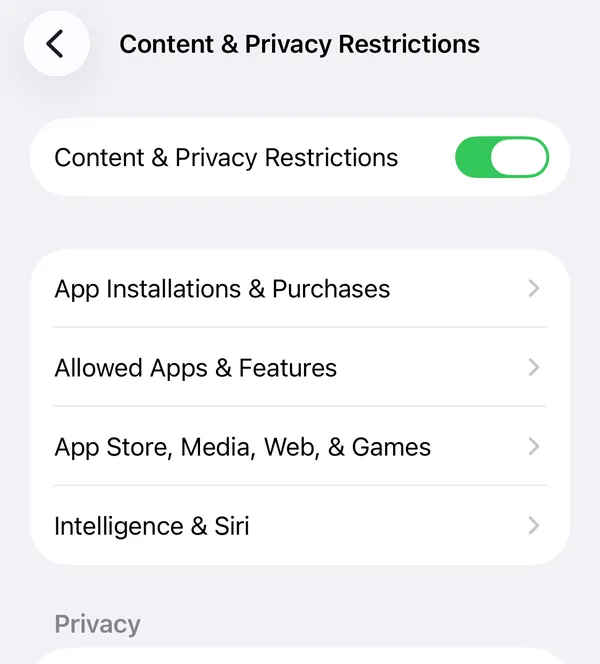
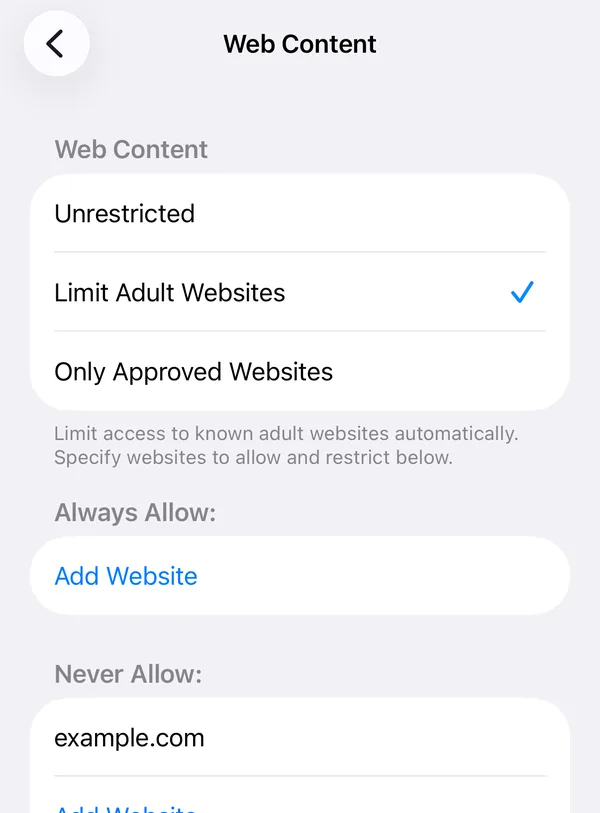
What it catches: websites Apple’s filter classes as adult, in Safari and the other browsers on your iPhone. While it’s on, iPhone also switches off Private Browsing in Safari.
What it misses: adult content inside apps (social feeds, messages), sites the filter hasn’t classified yet, and search results, which are a separate setting (step 4).
How easy to undo: about four taps, unless someone else holds your Screen Time passcode.
2. Let someone else set your Screen Time passcode
This is the step that makes the filter hold. With a Screen Time passcode, iPhone asks for it before anyone changes the Screen Time settings you chose. If someone you trust sets it and you don’t know it, the filter stays on when you’d rather it didn’t.
- Pick someone you trust: a partner, a friend, a sponsor. Tell them what it’s for and that you won’t ask for it on impulse.
- Hand them your iPhone. On iOS 26 they open Settings → Screen Time, scroll down and tap Lock Screen Time Settings. On iOS 27 it’s Settings → Screen Time → Manage Screen Time → Lock Screen Time Settings.
- They enter a four-digit passcode, then enter it again. Look away while they do.
- iPhone may offer Screen Time Passcode Recovery, which lets the passcode be reset with an Apple Account. The whole point is that you don’t know the passcode, so let them decide this step too.
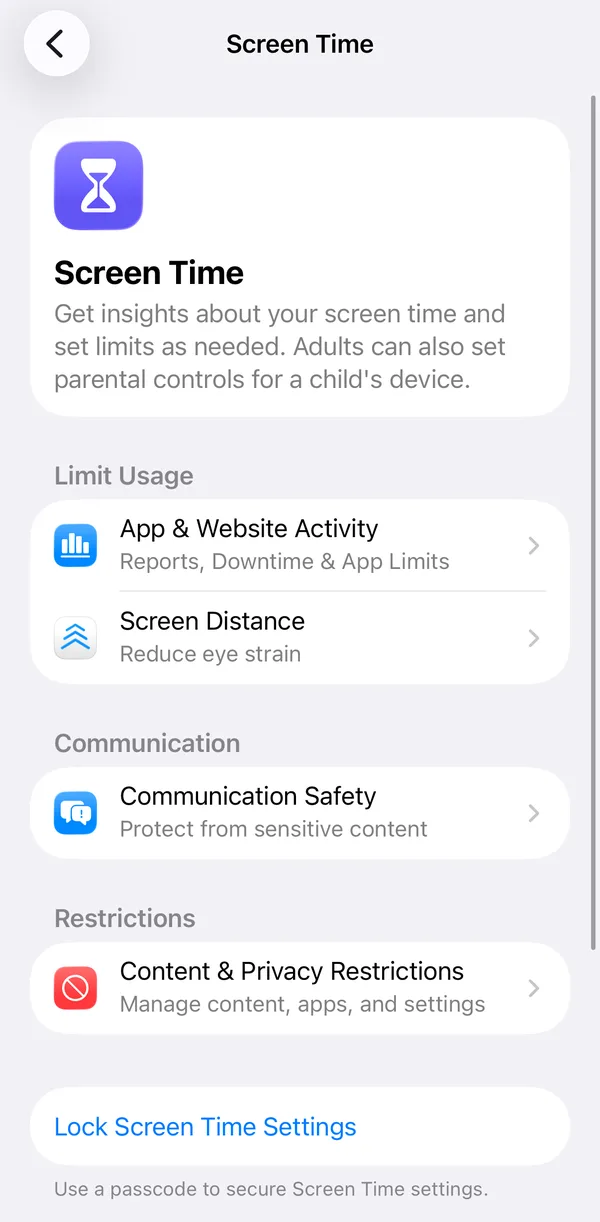
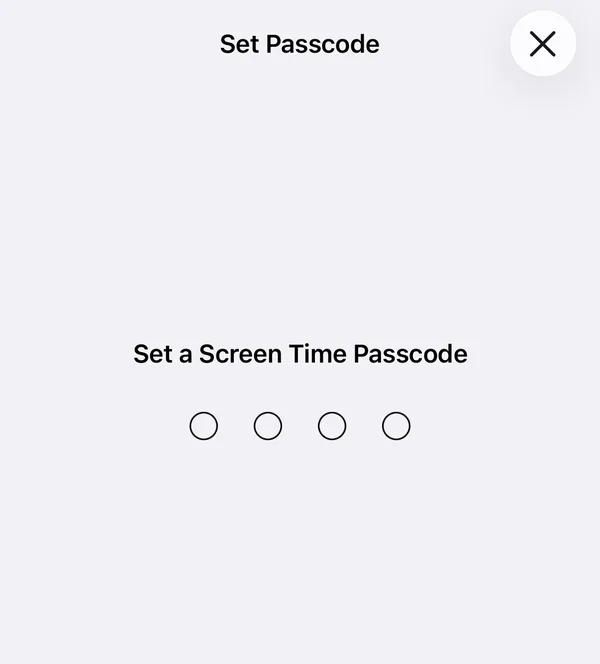
What it catches: nothing new. It protects every Screen Time setting you chose, including the filter and the next step.
What it misses: it can’t make the filter itself any smarter.
How easy to undo: only with them. The cost is that you’ll need them for every Screen Time change, even ordinary ones like an app limit.
3. Stop apps being deleted (optional)
If you also use a blocker app, this stops it being deleted in a weak moment. Screen Time can only lock deleting for every app at once, not for one app.
- Open Settings → Screen Time → Content & Privacy Restrictions.
- Tap App Installations & Purchases (called iTunes & App Store Purchases on older versions).
- Under App Management, set Deleting Apps to Don’t Allow.
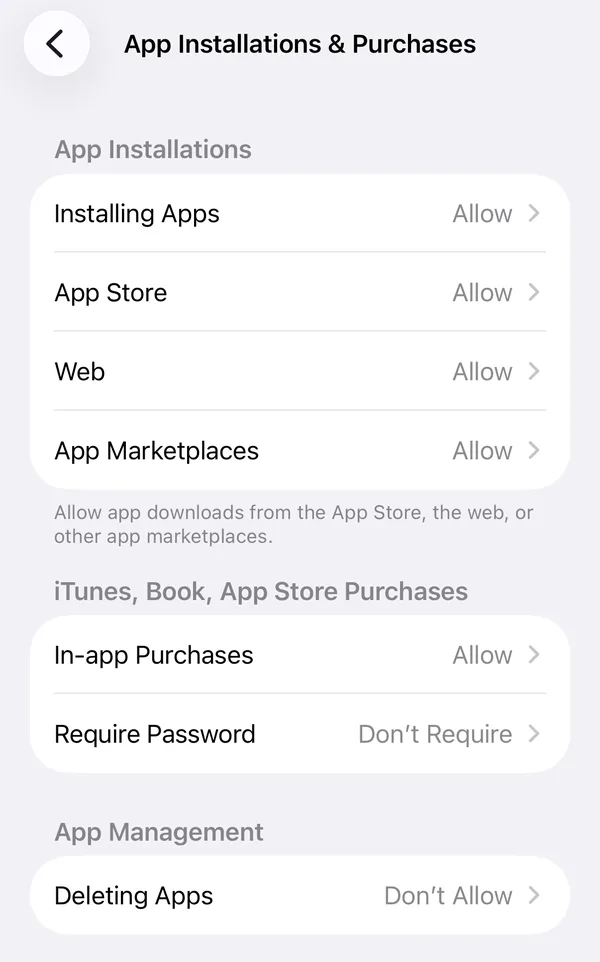
What it catches: deleting any app from the Home Screen.
What it misses: it blocks no content on its own.
How easy to undo: the same screen, unless the passcode is set.
4. Turn on SafeSearch, and check Siri
Screen Time filters websites. Search results are a separate setting, and Safari has no SafeSearch switch of its own: SafeSearch belongs to the search engine.
- In the Google app, tap your profile picture, then Settings → SafeSearch, and choose Filter.
- In Safari, go to google.com/safesearch and choose Filter there too.
- For Siri, open Settings → Screen Time → Content & Privacy Restrictions → Intelligence & Siri and restrict Web Search Content and Explicit Language. On iOS 27 the item is called Siri, and Explicit Language is listed there.
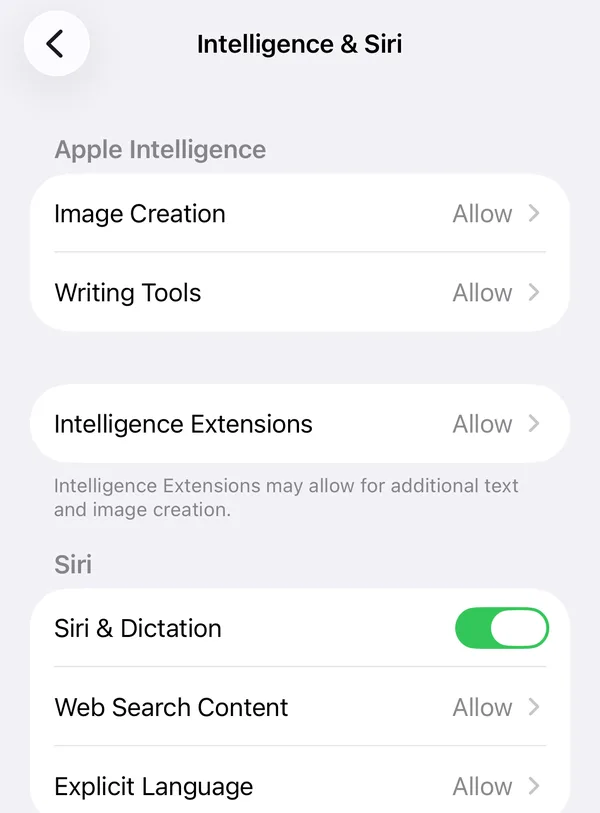
Choose Filter, not Blur. Google says Blur, its default for adults, only blurs explicit images, so explicit text and links can still show. Filter hides all explicit results.
People in Apple’s own forums report that with Limit Adult Websites on, Safari opens search engines in their safe mode, but the browsers built into other apps don’t. Apple doesn’t document this either way, so set SafeSearch yourself as well.
What it catches: explicit results on Google Search.
What it misses: Google says SafeSearch only works on Google Search: not other search engines, not sites you type in, not links in apps.
How easy to undo: one switch. Google only locks it when a parent, a school or a network admin manages it. More in how to lock SafeSearch.
All four at a glance
| Setting | Catches | Misses | How easy to undo |
|---|---|---|---|
| Limit Adult Websites | Adult websites in Safari and other browsers | Content inside apps, new sites, search results | About four taps |
| Passcode someone else holds | Nothing new: it protects the others | Doesn’t improve the filter | Needs that person |
| Deleting Apps: Don’t Allow | Deleting any app | Blocks no content | A few taps, or the passcode |
| Google SafeSearch: Filter | Explicit Google results | Other search engines, sites, apps | One switch |
What iPhone’s built-in tools can’t do
- Filter inside apps. Explicit posts in social and messaging apps aren’t websites to the filter. Some apps have their own sensitive-content settings: see Reddit and X.
- Know every site. The filter is automatic and works from Apple’s own judgement. New sites appear every day, and it sometimes blocks harmless pages too.
- Slow you down on your own. Without someone holding the passcode, undoing all of this takes seconds, and nobody is told.
- Help with the urge. A filter removes the easy path. The urge still comes.
Where QUIT fits
We make QUIT, so weigh this section with that in mind. On iPhone, QUIT switches on this same Apple filter for you. It won’t block anything Screen Time misses. What it adds is for the moment you want to undo it:
- Strict Mode. Turning the shield off inside QUIT is a request that unlocks after 24 hours, or sooner if a partner you trust approves. Nobody has to hold a passcode.
- An optional delete lock. While the shield is on, iPhone won’t let any app be deleted, QUIT included. Switching the lock off goes through the same 24-hour wait.
- It notices. No App Store app can make itself impossible for the phone’s owner to switch off. If QUIT finds the shield off when you open it, it tells you, and your partner if you chose to share.
- Help in the moment. A Panic Button to breathe through an urge, an AI coach you can talk to at 1am, and a streak that never erases the days you earned.
If someone already holds your Screen Time passcode, keep it that way. QUIT is for the part a filter can’t reach.
What blocking can’t do
A blocker takes away the easy path. It doesn’t take away the urge, which tends to come back at the same times and in the same moods. Urges usually pass within minutes if you don’t act on them, and getting through those minutes is a skill: how to ride out an urge. For other phones and browsers, start at how to block porn on any device.
Menus checked step by step in Apple’s iOS 26.5 simulator on 14 October 2026, which is where the screenshots come from (the simulator shows the settings but doesn’t enforce the web filter, so blocking itself was checked on a real iPhone on 13 October). Steps from Apple’s iPhone User Guide (iOS 26 and iOS 27 versions) and Apple Support’s parental controls article, checked 14 October 2026. SafeSearch steps from Google Search Help, checked 14 October 2026. Forum reports from Apple Community threads, 2023 to 2025.
Questions people ask
How do I block porn on my iPhone for free?
Open Settings → Screen Time → Content & Privacy Restrictions, turn it on, then tap App Store, Media, Web, & Games → Web Content and choose Limit Adult Websites. To make it hold, let someone you trust set your Screen Time passcode.
Does Limit Adult Websites work in Chrome and other browsers?
It is part of iPhone itself, not a Safari setting, so it is designed to cover Safari and the other browsers on your iPhone. It does not filter what appears inside apps that are not browsers, such as social media feeds or messages.
How do I block porn on iPhone permanently?
Nothing on a phone you own is truly permanent. The closest you can get for free is Limit Adult Websites, plus Deleting Apps set to Don’t Allow, with a Screen Time passcode that someone else holds.
Can I block porn on an iPad the same way?
Yes. iPad has the same Screen Time settings, including Content & Privacy Restrictions, Web Content and the Screen Time passcode.
Why did Private Browsing disappear from Safari?
While Limit Adult Websites is on, iPhone switches off Private Browsing in Safari. That is expected, not a fault.